
192.168.1.1 is not reserved for all router models. Some brands impose a different address, sometimes even without notifying the user during the initial setup. Entering the wrong IP address often results in a blank page or an error, with no clear explanation.
Leaving factory settings intact exposes many households to vulnerabilities that manufacturers and internet service providers remind users of in every manual. In reality, it only takes a forgotten password, an unchecked box, or mysterious advanced options to turn your network into an easy target.
192.168.1.1, 192.168.0.1, 192.168.l.l: how to avoid entering the wrong address?
It is impossible to access your box without knowing the correct private IP address. In France, two numbers dominate: 192.168.1.1 and 192.168.0.1, considered the default gateway for the majority of internet boxes. Many also try 192.168.l.l, convinced they have found the right combination… Fatal error: an IP address only accepts numbers, never letters, which is why this format always displays an error.
To ensure access to your administration interface, start by checking the label on your router. It usually contains the administration address and the initial credentials. If nothing is displayed, you need to search the provided documentation or use the Windows command prompt with “ipconfig” to find the gateway to enter in the browser.
To clarify, here are the main addresses encountered during installations:
- 192.168.1.1: the most common configuration for individuals, for many French boxes.
- 192.168.0.1: chosen by some routers and competing internet service providers.
- 192.168.l.l: a common typo that must be replaced with an entirely numeric sequence.
Using the correct IP address leads you to the administration interface, the control center of your network and connection. This access point governs every setting: Wi-Fi name, password protection, profile management, and access to advanced features. Keep the exact IP address and your credentials safe, as this will help you avoid many inconveniences if you need to redo any configurations.
If you are looking for a detailed step-by-step guide, this guide will help you configure your router via 192.168.l.l methodically, even if your model differs.
Administration interface: how to navigate and configure your router without hassle?
Once you have accessed the IP address, the login page appears. Username and password are required: most often, a label on the hardware or the documentation reveals them. Sometimes, the “admin / admin” duo works if nothing has been changed. If that is no longer the case, you will need to enter the codes previously customized during a prior use, or reset the router.
Everything is there, on this dashboard. You can configure the wifi network, secure access to the administration, and monitor connected users as if it were a digital security guard. The option to create a guest network isolates your visitors from your main devices. The parental control sections also allow you to restrict certain content or impose schedules for younger users.
Here are the most frequently used operations to maintain control over your connection:
- Display the list of connected devices to monitor or remotely disconnect intruders.
- Change the wifi network name (SSID) to personalize your connection.
- Adjust the wifi channels to avoid interference and improve the signal throughout your home.
Some manufacturers also offer a mobile app to adjust your settings in real-time, wherever you are. A game-changing tip: get into the habit of noting your new credentials as soon as you change them; losing access to the administration due to forgetfulness happens much faster than one might think.
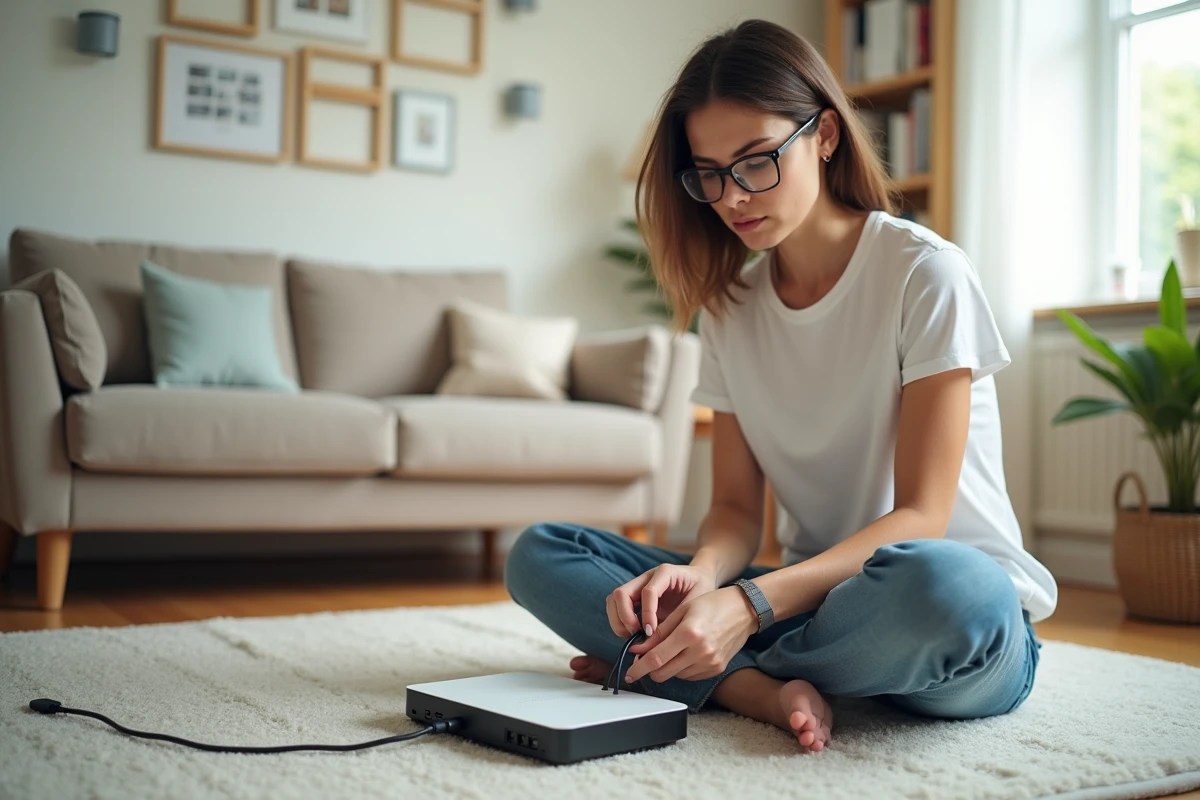
Strengthening the security of your home network: concrete actions to stay calm
Access to the administrator interface should never remain unchanged. From the first visit, create a complex, long admin password made up of letters, numbers, and special characters: automated attacks specifically target overly simple codes left by default.
Also, remember to check the wifi encryption level. Prefer WPA2 or, when possible, WPA3. The WPS option simplifies connection but leaves the door open to intrusions: consider disabling it if you do not need it. Setting up a guest network remains the most straightforward solution to isolate guest devices from your personal data.
To better protect your access, several options are available in the interface:
- Enable the firewall to filter unwanted access.
- Update the router’s firmware, often neglected but crucial for addressing recent vulnerabilities.
- Implement MAC filtering to restrict connection to recognized devices.
A VPN offers additional protection, especially for remote access to the network administration. Finally, opt for a password manager to keep all your credentials under control. With each adjustment, you reduce the risk, sometimes simply by checking an option or lengthening a password. A routine, perhaps, but it makes all the difference at the decisive moment when digital security reminds us of its importance.